Download Brainmox
for every desktop.
Get Brainmox for Windows from the Microsoft Store, or for Mac and Linux after signup. Same account and conversations as the web app.

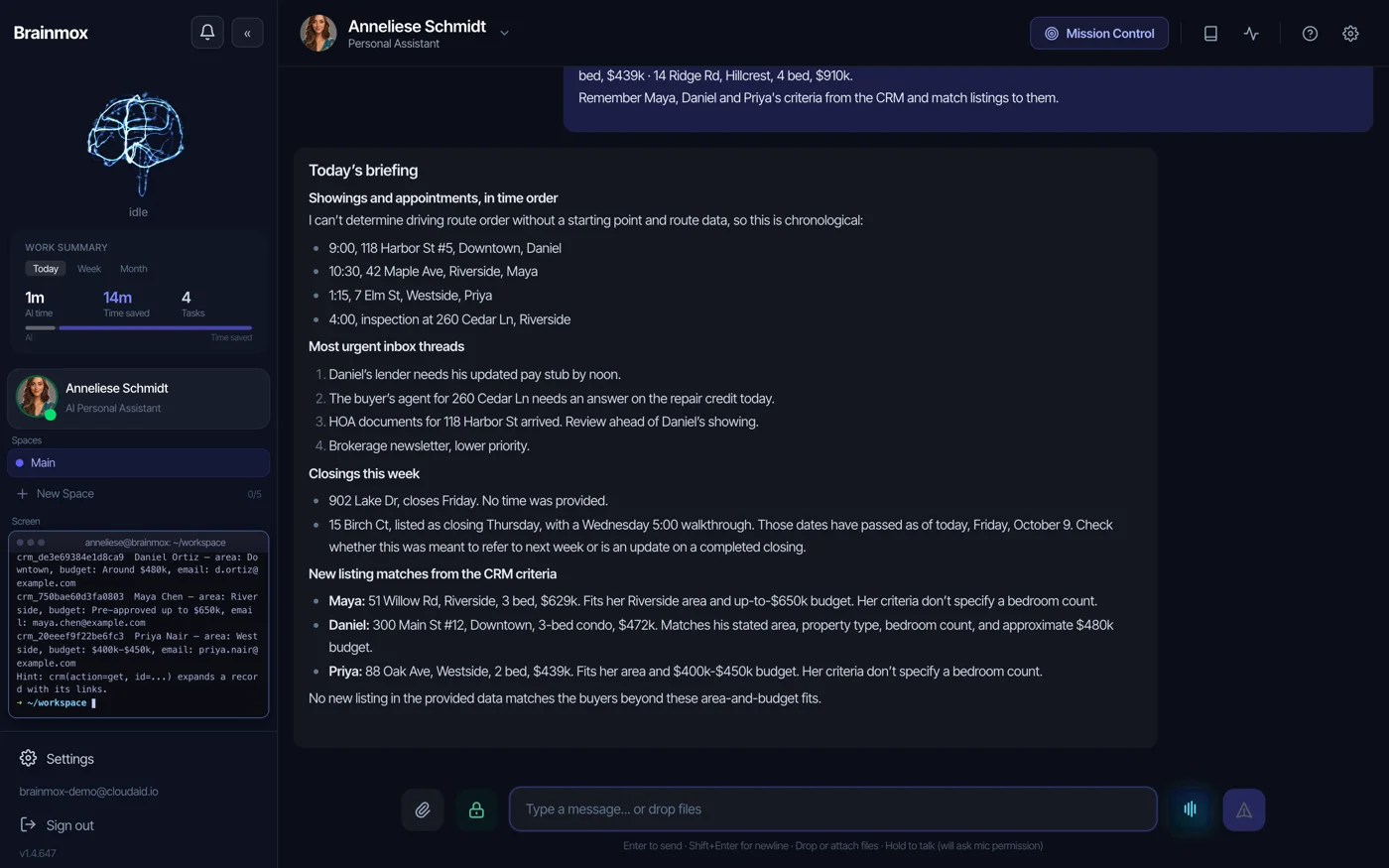
Desktop apps for
Windows, Mac and Linux.
Windows
Windows 10 and 11 · Microsoft Store
macOS
Apple silicon and Intel · macOS 12+
Your setup page detects your system and gives you the right file.
Linux
x64 and ARM64 · AppImage and .deb
Your setup page detects your system and gives you the right file.
Published by CloudAid Inc.Code-signedPassed Microsoft Store certification How we protect your data
Or use it in your browser.
Everything works at app.brainmox.com. Mobile apps are on the way. Until then, use the web app or Telegram, Slack or WhatsApp.
Built for a
working day.
Always in the tray
Closing the window keeps your assistant running. One click brings it back.
Desktop notifications
See which assistant replied when work finishes or a channel message arrives.
Launch at login
Turn it on from the tray and your assistant is ready when you start the day.
Drag-and-drop files
Drop documents into chat and your assistant routes them to the right place.
Push-to-talk
Ask out loud and hear the reply in your assistant's voice.
Same account everywhere
Desktop, web and your messaging channels share one assistant and one memory.
The app needs
a Brainmox account.
- 1
Join the waitlist
Email, name and profession. Confirm your email.
- 2
Get your invitation
A single-use code and a signup link by email.
- 3
Sign up
Your setup page offers the right download.
- 4
Sign in on desktop
Your assistant and conversations are there.
What you need
to run it.
| Platform | Requirements | How to get it |
|---|---|---|
| Windows | Windows 10 or 11, 64-bit (x64). No native ARM build yet. | Microsoft Store |
| macOS | macOS 12 Monterey or later, Apple silicon or Intel. | Setup page after signup |
| Linux | 64-bit x64 or ARM64. .deb for Debian and Ubuntu; AppImage for most other distributions. | Setup page after signup |
| All | An internet connection and a Brainmox account. | Join the waitlist |
Download
questions.
Is the Brainmox app free to download?
Is the Windows app safe to install?
Why do I need a Brainmox account?
How does the app update?
Does it work on Windows on ARM?
Where do I get the Mac and Linux apps?
Is there a mobile app?
How do I uninstall it on Windows?
No account yet?
Start with the waitlist.
Without an account, the app opens to a sign-in screen. Join the waitlist first; already have an invitation code? Go straight to signup.