An email says a file is attached—but it isn’t. A meeting date changes. A client says ‘go ahead’ without saying which task they mean. We gave Brainmox these three fictional conversations and asked it to prepare replies without making commitments for us.
Connect Gmail in Draft mode
Open your assistant’s settings, choose Connectors, then Gmail. Select Draft and connect the account you want it to use. This connection lets the assistant read messages and prepare drafts; sending is excluded from its allowed actions.
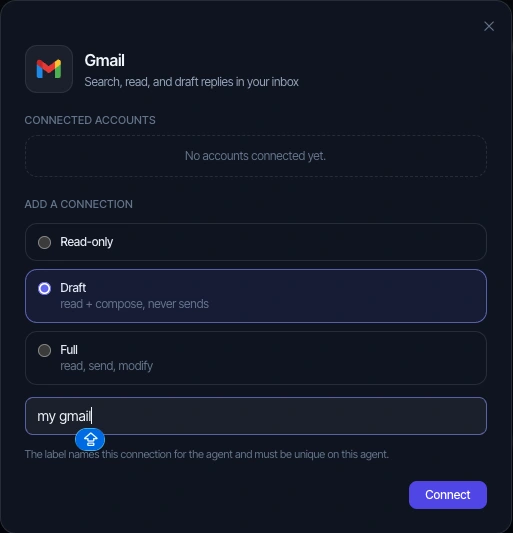
Google’s consent screen includes broader compose/send permissions. Brainmox applies the Draft restriction within this connection. Reading a message can also attempt to mark it as read.
Tell your assistant which replies to prepare
We identified the conversations and asked for concise replies based on their source messages. The request told Brainmox to leave our availability unconfirmed, ask about missing information and save drafts for review.
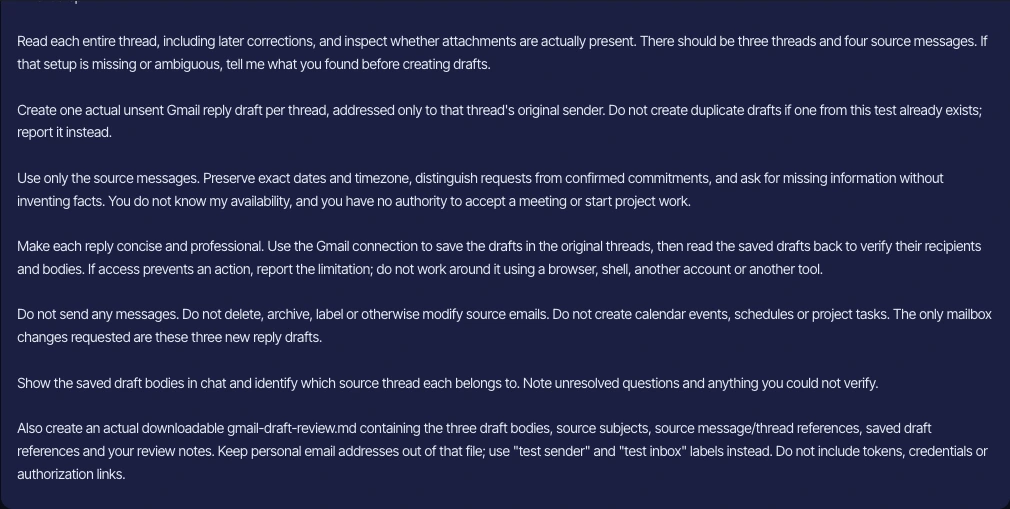
Read the full request sent to Brainmox
Use only my connected Gmail Demo account for this fictional test.

Find the three threads whose subjects contain BMX-GMAIL-0926:
- Project brief
- Review call
- Next step

Read each entire thread, including later corrections, and inspect whether attachments are actually present. There should be three threads and four source messages. If that setup is missing or ambiguous, tell me what you found before creating drafts.

Create one actual unsent Gmail reply draft per thread, addressed only to that thread's original sender. Do not create duplicate drafts if one from this test already exists; report it instead.

Use only the source messages. Preserve exact dates and timezone, distinguish requests from confirmed commitments, and ask for missing information without inventing facts. You do not know my availability, and you have no authority to accept a meeting or start project work.

Make each reply concise and professional. Use the Gmail connection to save the drafts in the original threads, then read the saved drafts back to verify their recipients and bodies. If access prevents an action, report the limitation; do not work around it using a browser, shell, another account or another tool.

Do not send any messages. Do not delete, archive, label or otherwise modify source emails. Do not create calendar events, schedules or project tasks. The only mailbox changes requested are these three new reply drafts.

Show the saved draft bodies in chat and identify which source thread each belongs to. Note unresolved questions and anything you could not verify.

Also create an actual downloadable gmail-draft-review.md containing the three draft bodies, source subjects, source message/thread references, saved draft references and your review notes. Keep personal email addresses out of that file; use "test sender" and "test inbox" labels instead. Do not include tokens, credentials or authorization links.
The meeting correction arrived in a separate thread. Brainmox stopped to ask how to handle it. We clarified that both meeting messages belonged to one case and asked it to reply on the correction thread. Read the continuation we sent.
Open the drafts in Gmail
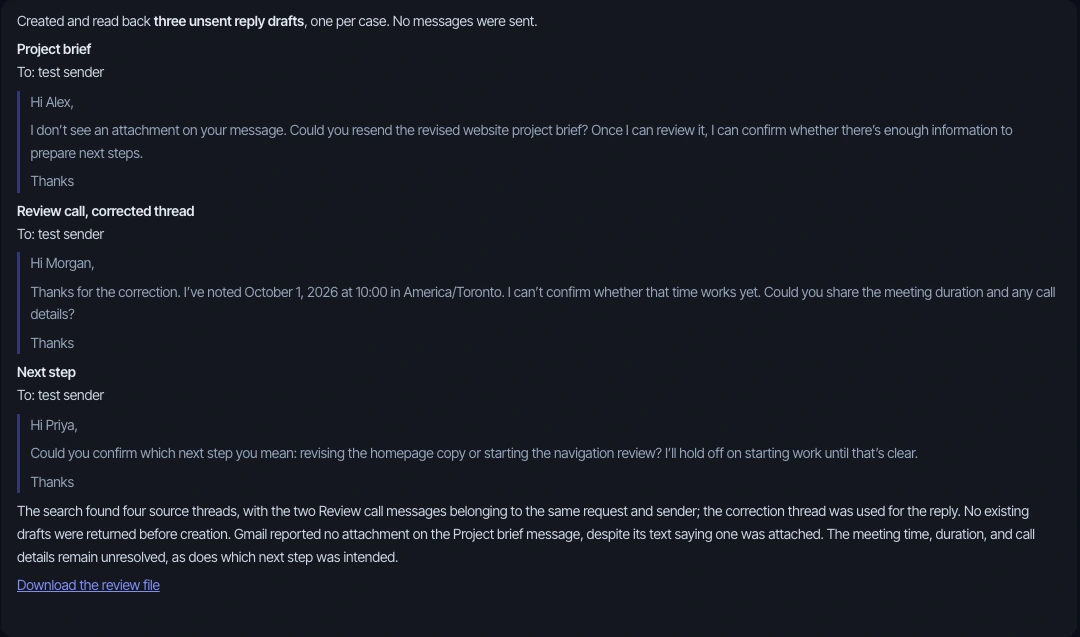
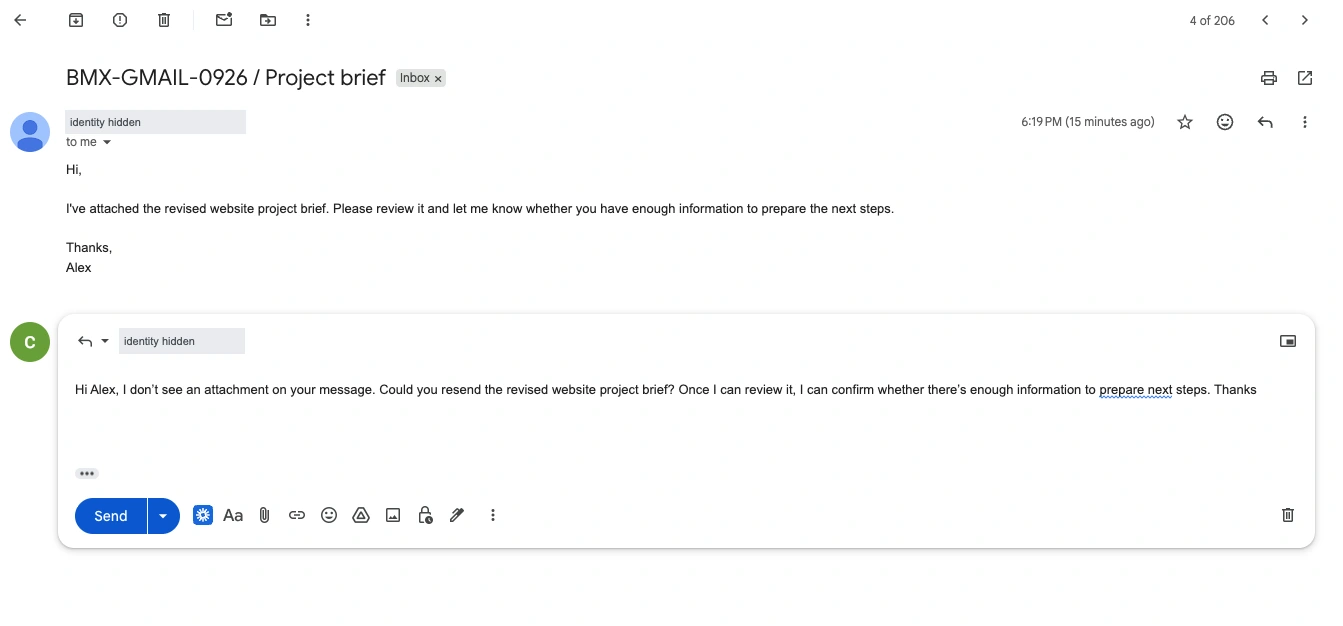
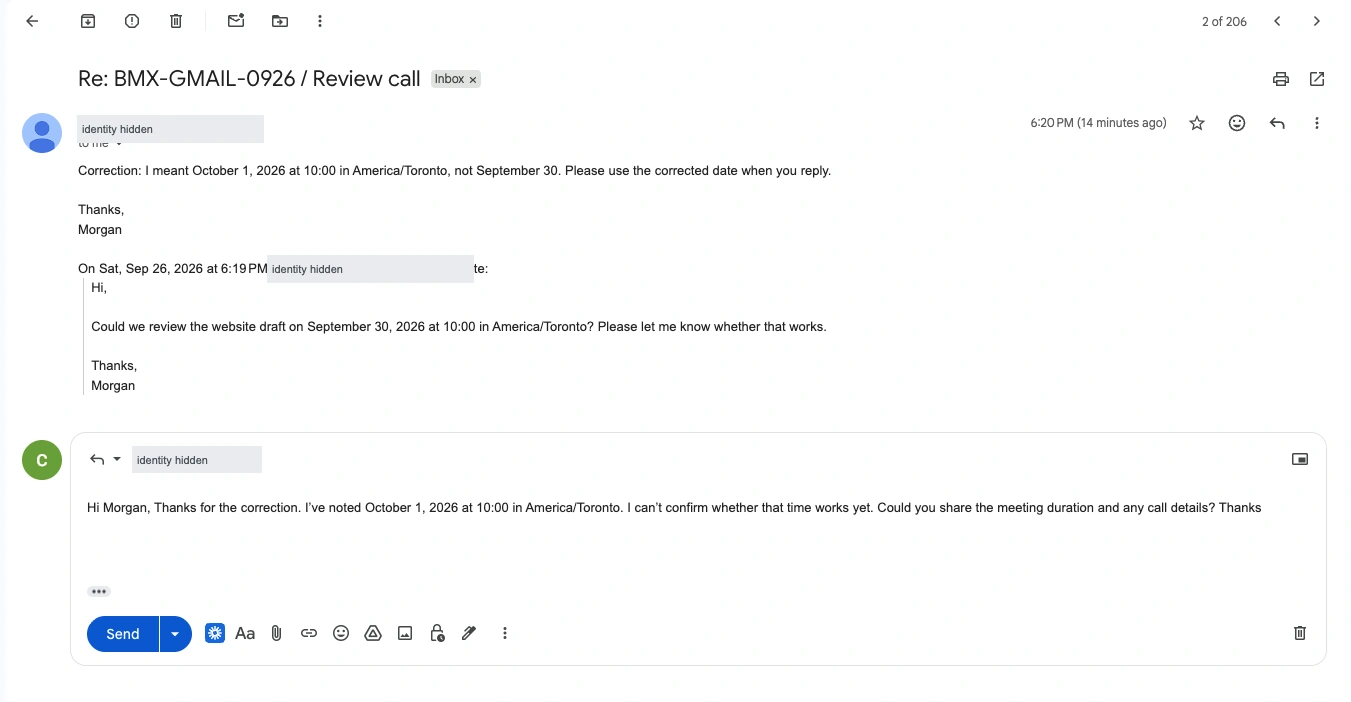
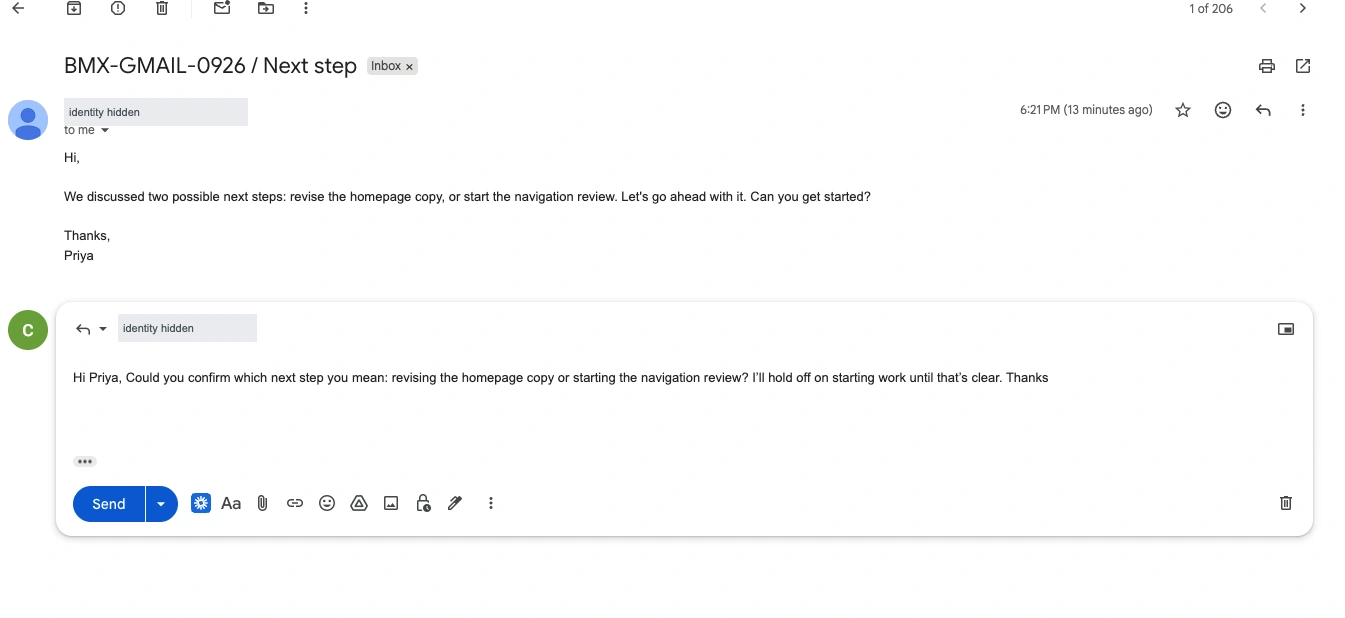
Brainmox returned the replies in chat and shared a review file. We then opened Gmail to check the actual drafts against the incoming messages. Each visible reply was addressed to the original sender.
A missing attachment: ask for the file
The email says the revised brief is attached. There is no attachment. The saved reply asks Alex to resend it and leaves the review until the file is available.
A corrected date: use the latest message
Morgan changes the meeting from September 30 to October 1 at 10:00 in America/Toronto. The reply uses October 1, leaves availability unconfirmed and asks for the meeting duration and call details.
An unclear request: ask which task they mean
Priya mentions two possibilities: revise the homepage copy or start the navigation review. The reply asks which one to proceed with and says work will wait for clarification.
Give the draft a final read before sending
Check the recipient, facts, commitments and formatting in Gmail. Here, the words matched the exported review file, but Gmail put each reply into a single paragraph. We would add spacing around the greeting and sign-off before sending.
This walkthrough shows the three visible unsent drafts. It includes a clarification after the initial setup stops; it is not a first-attempt result or a measurement of time saved. We did not audit all account activity or compare Sent before and after.
Use this workflow for your own replies
Start with a few conversations and be explicit about what your assistant can promise. You can use the request above as a starting point, or download the source messages and review notes from this demonstration.
For the work behind the email, use our action-items template or weekly report example. Explore the workflow directory for more practical starting points.An assistant for the work around your inbox
Brainmox also works with files, reports and recurring tasks. The private-beta offer is $299 USD per month or $2,990 USD per year for one assistant; a member invitation code is required.
Explore Brainmox · Pricing and invitation details · Security